


Video Editor & Maker - InShot
4.8238.33K Reviews
App Specs
- Version
- 2.243.1555
- Updated On
- License
- Free
- Downloads
- 500,000,000+
- Developer
- InShot Video Editor
- Categories
- Photography
- Platform
- Android, iOS
Screenshots
 Analysis by AppCompare
For a household that shares a phone or tablet, a video editor can quickly become part of everyday family life: one person trims a school performance, another makes a short holiday montage, and someone else wants to add music to a clip. I find Video Editor & Maker - InShot approachable for those casual jobs because its editing tools are presented in a way that encourages trying things without first learning a complicated workflow. The main thing to plan around is not the editing itself, but whose media is on the device and who is using it.
Making a shared device feel manageable
InShot is a photography app from InShot Video Editor, though its focus is making and editing video. On a shared device, that mix can be useful: someone can assemble a quick clip from existing footage, while another person can make a slideshow or add a soundtrack. The app is free to install, and its large audience—over 500 million installs and an average rating of 4.8 from around 24 million ratings—suggests it has become a familiar option for simple mobile edits.
For a realistic example, imagine returning from a family day out with a handful of short clips. I’d make a copy or select only the moments intended for the finished video, trim out pauses, arrange the clips, then add a title or music. That keeps the project focused and makes it easier to hand the device to someone else for a quick look before exporting. It also avoids turning a shared editor into a place where everyone’s unrelated footage gets mixed into one project.
Guides and Analysis on Video Editor & Maker - InShot
Keep projects and accounts distinct
When several people use one device, I’d agree on a simple routine before anyone starts: choose the right photos and videos, give each project a clear name if the app offers that option in the current workflow, and check the selected clips before making changes. More importantly, remember that editing a video does not make the original media private. A person who can browse the device’s gallery may see footage belonging to other household members, so device-level profiles and access settings matter more than any editing shortcut.
It is also worth deciding who handles exports. A finished video may be saved to the shared device or passed on for someone else to post, so a quick review can prevent accidental sharing of a private moment, a child’s face, or a location in the background. I would treat captions, stickers, and music as creative choices, not as a substitute for checking what the clip reveals. That small pause is especially useful when a video is intended for a public social account.
Who will enjoy it, and who may prefer something else
The interface works best for people who want to make a polished short video without sitting down to learn a desktop editor. Beginners can start with trimming, arranging, adding text, and choosing music, then explore effects as they get comfortable. A more experienced editor may still appreciate the speed of making a quick phone-first clip, but someone who needs a highly structured, multi-track workflow or detailed control over a long project may be happier in a more advanced editor.
That is the trade-off I’d keep in mind when comparing InShot with the usual alternatives. A basic built-in editor can be quicker for a single trim, but it may not offer the same creative range in one place. A full desktop program is a better fit for intricate timelines and demanding projects, though it is less convenient when the footage is already on a phone and the goal is simply to share a short memory. InShot sits between those choices: flexible enough for personal edits, yet still designed around approachable mobile use.
Worth Reading Before You Choose

Switching to Android Auto Means Rethinking Your Driving Routine

Google Calendar Makes a Crowded Week Easier to Manage

Ludo King Makes the Most of the Minutes Between Plans

Baby Panda World Brings Quick Play to Modern Phones, but Its Game Library Feels Busy

ESPN’s Live Game View Makes Following Close Games Easier

QuizzLand Review: A Good Fit for Short Trivia Breaks, Not Every Player
The app is free, with in-app purchases ranging from $0.99 to $199.99 per item, so I’d check the purchase screen carefully if a feature prompts an upgrade, especially on a shared device. It is rated for Everyone and requires Android 7.0 or later; the current version is 2.175.1517. Those details make it easy to judge basic compatibility, but an Everyone rating should not be treated as a family supervision feature. I’d still guide younger users through choosing clips, music, and sharing destinations.
A practical way to coordinate edits
For group projects, I find it helps to settle the purpose before editing: a private keepsake, a school presentation, or a short social post all call for different choices. Ask who is selecting the footage, who is adding text or music, and who has the final say before the export is shared. That avoids repeated edits and makes it easier to keep a child’s contribution creative while an adult checks the final destination.
One useful workflow is to make a rough cut first, watch it once without stopping, and only then add decorative effects. This catches pacing problems before time goes into stickers or transitions. For a clip with spoken words, I’d listen again after adding music; even a good soundtrack can make speech harder to hear. And if a video is meant for a particular screen or platform, check its framing before finishing rather than assuming every crop will suit every destination.
Creative tools, with a few sensible limits
The strongest reason I’d choose InShot over a bare-bones phone editor is the way it combines everyday editing with text, visual treatments, and audio choices. That makes it handy for turning unrelated short clips into something with a consistent mood. The flip side is that extra options can tempt you to overwork a simple video. I’d use effects to support the moment, not add a new transition to every cut; a clean sequence often feels more personal than a montage crowded with decoration.
Music also deserves a little care. A track can set the tone quickly, but it may compete with conversation or change how a family memory feels. I’d keep the original sound when it carries something meaningful, then add music only where it improves the edit. If the video is for sharing, think about whether the chosen audio and footage are appropriate for that audience. These decisions matter more than finding the most eye-catching filter.
Another practical trade-off is time. A quick cut can be done in moments, while a slideshow with carefully chosen images, timed text, and audio takes longer than the first screen might suggest. I’d start with a short test project before committing to a large batch of footage. That gives you a feel for the controls and helps you decide whether the mobile workflow is comfortable for the person who will do most of the editing.
How I’d decide whether it belongs on the device
InShot was released on March 5, 2014, and its current version continues to serve the straightforward need that keeps many people editing on phones: turn everyday footage into a shareable video without moving everything to a computer. It is a strong fit for households that value convenience, want approachable creative tools, and can agree on sensible boundaries for shared media. I’d skip it for a family member who only needs to trim a clip once in a while and prefers the simplest possible tool, or for a creator whose projects depend on elaborate timeline control.
When several people share one device, the best setup is less about mastering every feature and more about keeping ownership and permission clear. Decide whose clips are being used, let the people in the footage have a say where appropriate, and review the finished video before it leaves the device. That approach makes the app’s creative range easier to enjoy without assuming that a shared editor automatically provides shared privacy.
Getting Started with InShot
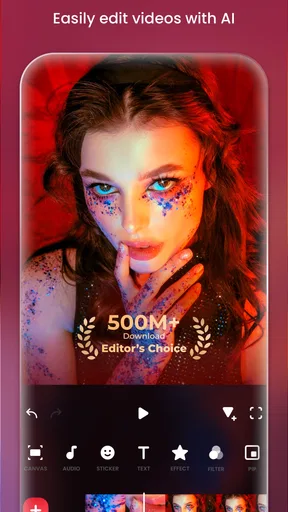
Opening InShot for the first time feels like stepping into a candy store of editing tools. Right off the bat, you’re greeted with a clean and intuitive interface that doesn’t overwhelm you with too many options. This is especially handy for folks like me who’d rather dive straight into editing without a steep learning curve.
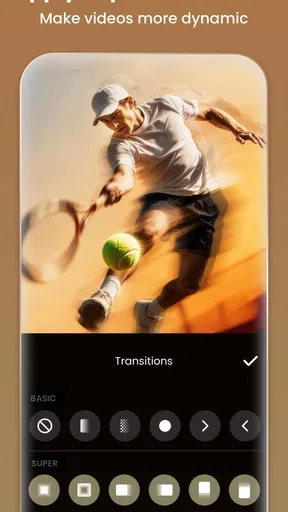
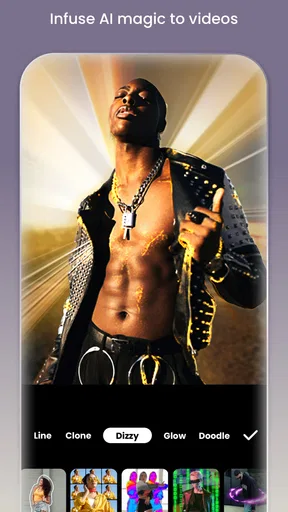
The app offers a plethora of features that even a beginner can navigate with ease. You can trim, cut, merge clips, and even adjust the speed with just a few taps. And let’s not forget the ability to add cool effects, filters, and transitions that really make your videos pop. It’s like having a mini editing studio right in your pocket.
Features Worth Highlighting
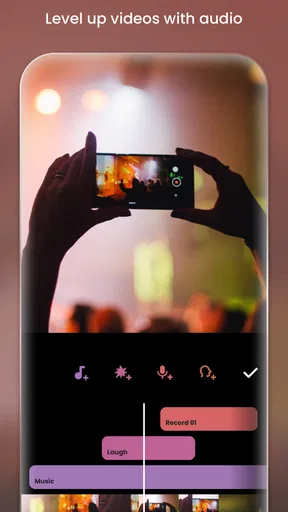
One of the standout features for me is the music and sound effects library. You can add your own tracks or browse through InShot’s selection to find just the right vibe for your video. Plus, the app’s ability to sync video and audio is surprisingly precise, making it easy to create a seamless audiovisual experience.
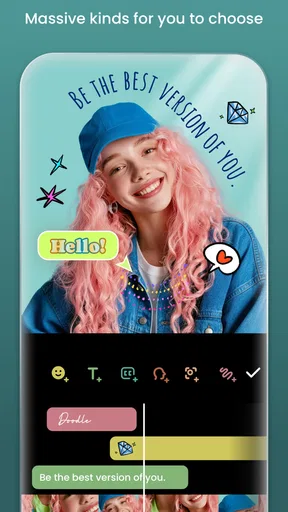
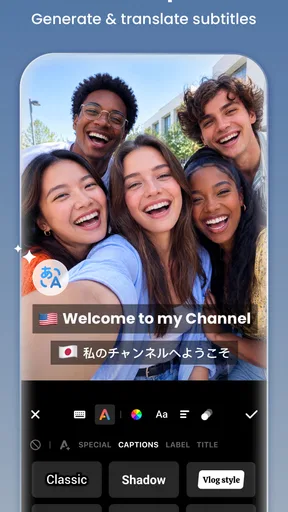
Also, let’s talk about the text and sticker options. Whether you’re looking to add captions, quirky stickers, or animated text, InShot has got you covered. The customization options let you tweak fonts, colors, and animations to your heart’s content. Trust me, it’s a game-changer for those who love adding a personal touch to their creations.
Why InShot Stands Out
What really sets InShot apart for me is its user-friendly design combined with powerful editing capabilities. While other apps might offer similar features, InShot brings everything together in a way that feels cohesive and straightforward. It’s perfect for both casual users wanting to make a quick edit and more serious creators looking to polish their content.
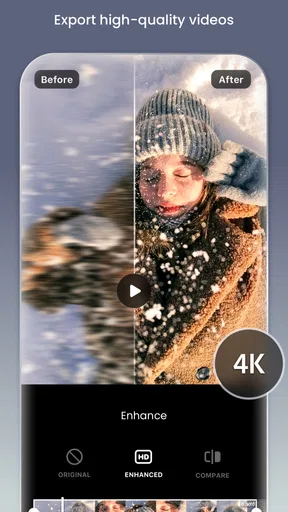
And let’s not forget the export options. InShot lets you save your videos in various resolutions, including 4K, which is a huge plus for anyone looking to maintain high quality. The sharing options are seamless, too, making it easy to upload your masterpieces directly to social media platforms.
A Few Final Thoughts
All in all, InShot is a fantastic app for anyone looking to dive into video editing without getting bogged down by complex software. It’s packed with features that cater to both beginners and seasoned editors. So, if you’re on the hunt for a versatile and user-friendly video editing app, give InShot a whirl. Who knows, you might just create the next viral video sensation!
Pros
- User-friendly interface for easy editing.
- Wide range of filters and effects.
- Supports multiple video formats.
- High-quality output resolution options.
- Regular updates with new features.
Cons
- Ads can be intrusive in free version.
- Limited advanced editing tools.
- Watermark on videos in free version.
- Some features require in-app purchases.
- Occasional app crashes reported.
FAQs for Video Editor & Maker - InShot
What features does InShot offer for video editing?
InShot provides a comprehensive suite of video editing tools. You can trim, cut, and split videos, adjust speed, and add music, text, and emojis. Additionally, it offers filters, effects, and transitions to enhance your clips. This makes it suitable for both casual users and more serious creators looking to polish their videos.
Is InShot available for free, and are there in-app purchases?
InShot is available for free on both Android and iOS platforms, providing a robust set of tools without any cost. However, to unlock additional features, remove watermarks, and access premium content like filters and effects, users can opt for in-app purchases or subscribe to InShot Pro.
Can I use InShot to edit photos as well as videos?
Yes, InShot is not limited to video editing; it also offers photo editing capabilities. Users can apply filters, adjust brightness and contrast, and add text and stickers to images. This dual functionality makes it versatile for those who wish to edit both photos and videos within a single app.
Does InShot support multiple video formats for exporting?
InShot supports exporting videos in various formats, making it compatible with different platforms. You can save your edited videos in high resolution and choose formats like MP4, MOV, and more. This flexibility ensures that your content can be shared across social media or other platforms seamlessly.
Is InShot suitable for professional video editing projects?
While InShot offers a wide range of editing tools, it is primarily designed for quick and easy edits rather than professional-grade video projects. However, its user-friendly interface and variety of features make it an excellent choice for content creators, social media influencers, and anyone looking to enhance their videos quickly.


